ezDraw Bingo and Raffle Software
User Guide Defining a Number Range
Starting a Draw in Quick Start Playing a UK Bingo/Housie Game in Quick Start Playing a US Bingo Game in Quick Start
Player Details Contact Information Player Notes Assign / Create Ticket Ticket Details Exporting and Printing Player Lists Importing Player Lists from Text Files
Adding a Sponsor Exporting and Printing Sponsor Lists
Adding a Prize Setting a Game to Active Games in Progress Past Game History Winning Ticket Validation Enter Code on Ticket Winner Claims Prize Invalidate Ticket Ticket Image
E-Mail Configuration E-Mail Setup E-Mail Templates
Voice Calling Select Voice Add Voice Delete Voice New Number Delete Number
Internet Tab Editing Game Details Deleting Games Getting Started in ezDraw
The ezDraw random number picker for raffles and bingo/housie game is a powerful gaming tool with many advanced features. If you're new to ezDraw, however, you can learn to play simple raffle games in a few minutes when you use the ezDrawQuick Start feature. [Contents] Using the Quick Start Feature
ezDraw's Quick Start feature lets you start playing a raffle game straight away without having to set up a game in the Game Manager. To use Quick Start, click on the Quick Start button inthe Welcome/Main Menu screen. This will change the display to the Raffle Game screen. 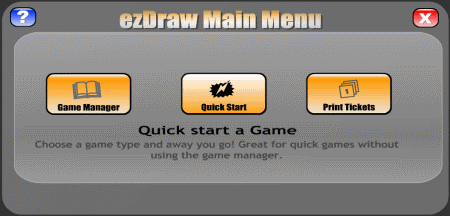 The ezDraw Start Menu - middle button for Quick Start The ezDraw Start Menu - middle button for Quick Start
[Contents]
Playing a Raffle Game in Quick Start
You can play simple raffle games in Quick Start without having to learn to use the Game Manager. Simply define a Number Range and Print Tickets (if required) and you're ready to play. UsingQuick Start is the best way to get to know the ezDraw program. Click on the Quick Start button in the Main Menu. Then click on the Raffle Game button in the Choose Game Type screento go to the Game Configuration/Display Options screen. Make any desired adjustments to the Display Options and click on the Next button to go to the Game Configuration/Set Number Range screen.
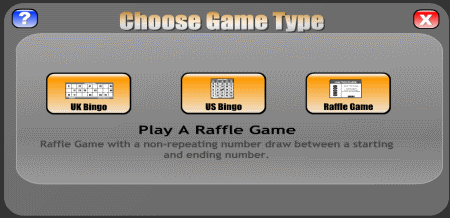 The ezDraw Quick Start Screen with mouse over the Raffle Game option button The ezDraw Quick Start Screen with mouse over the Raffle Game option button
[Contents] Defining a Number Range in Quick Start
To play a raffle game in ezDraw, you need to specify a Number Range. The Number Range is the number of available numbers that ezDraw may pick. The Number Range defines the lowest and highestnumbers that may be picked during a draw. The Number Range also governs the number of tickets and the ticket numbers that will be printed for a given game. Starting Number
Enter the lowest number you want ezDraw to be able to pick in the Starting Number text box in the Raffle Game screen when you select the Quick Start option from the Welcome/Main Menu screen. TheStarting Number also dictates the lowest ticket number when you Print Tickets. The Starting Number must be equal to or greater than 1.
Ending Number
Enter the highest number you want ezDraw to be able to pick in the Ending Number text box in the Raffle Game screen when you select the Quick Start option from the Welcome/Main Menu screen. The EndingNumber also dictates the highest ticket number when you Print Tickets. The Ending Number must be less than 100,000.
Once you have set a Number Range (Starting Number and Ending Number) in the Raffle Game screen in Quick Start you are ready to Print Tickets (if required) andPlay a raffle game. 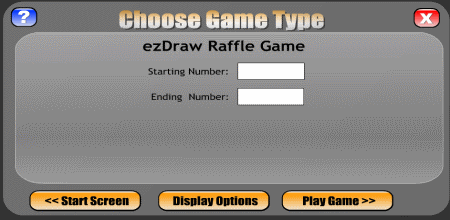 The Game Configuration screen for Raffle Games in Quick Start The Game Configuration screen for Raffle Games in Quick Start
[Contents] Starting a Draw in Quick Start
Click on the Play Game button in the Raffle Game/Game Configuration screen to start playing a raffle game in Quick Start using the defined Number Range. The display will change tothe Play Game screen. Click on the Start Draw button to draw a number at random from the defined Number Range. The drawn number will be displayed in the centre of the Play Game screen. The way the drawn number isdisplayed depends upon the Number Draw Style selected in Display Options. After the drawn number has been displayed, left click anywhere on the Play Game screen to return to the Raffle Game screen and click on the Start Draw button to start a new draw. All drawn numbers andthe number of numbers drawn are displayed on the Raffle Game screen. When you play a raffle game in Quick Start, you can make as many draws as there are numbers in the Number Range. ezDraw will only pick an available number once. Once picked, numbers are listed and asa Drawn Numbers in the ezDraw Play Game display. When all numbers in the Number Range have been drawn, a Game Over message displays in the Play Game screen. You can Exit your raffle game at any time by clicking on the Main Menu button. ezDraw will prompt you to choose to quit the game, continue the game or Print Numbers (to save a record ofthe drawn numbers). 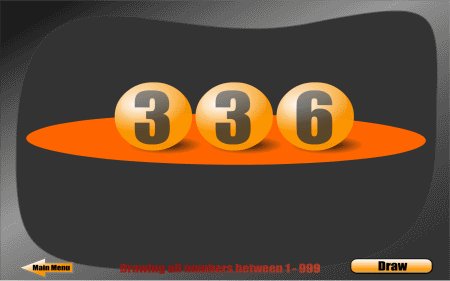 The Play Game Display screen for Raffles & UK Bingo/Housie The Play Game Display screen for Raffles & UK Bingo/Housie
[Contents] Playing a UK Bingo/Housie Game in Quick Start
You can play simple UK Bingo/Housie games in Quick Start without having to learn to use the Game Manager. Using Quick Start is the best way to get to know the ezDraw program. Click onthe Quick Start button in the Main Menu. Then click on the UK Bingo/Housie button in the Choose Game Type screen to go to the Game Configuration/Display Options screen. Make any desiredadjustments to the Display Options and click on the Next button to go to the Game Configuration/Set Number Range screen. The Number Range will be automatically set to 1-90 for UKBingo/Housie games. Click on the Start Game button and proceed with your game. Click on the Print Tickets button to go to the Print Tickets screen if your need tickets for your bingo game. Starting a draw in aUK Bingo/Housie game is the same procedure as for a raffle game in Quick Start. The only difference is that the display graphic changes to incorporate a virtual UK Bingo style game board which shows all numbers from 1-90 in rows of 10 and highlights numbers thathave been drawn. When all 90 numbers have been drawn you cannot make any more draws and the game is over. 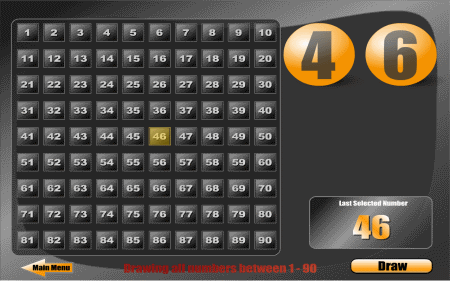 The Play Game Display screen for UK Bingo/Housie games The Play Game Display screen for UK Bingo/Housie games
[Contents] Playing a US Bingo Game in Quick Start
You can play US Bingo games in Quick Start without having to learn to use the Game Manager. Using Quick Start is the best way to get to know the ezDraw program. Click on the QuickStart button in the Main Menu. Then click on the US Bingo button in the Choose Game Type screen to go to the Game Configuration/Display Options screen. Make sure you select a USBingo Game Type option to set the configuration for winning combinations. Make any desired adjustments to the other Display Options and click on the Next button to go to the Game Configuration/SetNumber Range screen. The Number Range will be automatically set to 1-75 for US Bingo games. Click on the Start Game button and proceed with your game. Click on the Print Tickets button to go to thePrint Tickets screen if your need tickets for your bingo game. Starting a draw in a US Bingo game is the same procedure as for a raffle game in Quick Start. The only difference is that the Play Game display screen changesinto a US Bingo board display format. When all 75 numbers have been drawn you cannot make any more draws and the game is over. 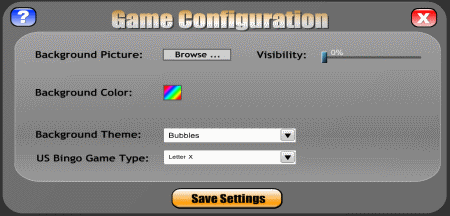 The Game Configuration screen for US Bingo games The Game Configuration screen for US Bingo games
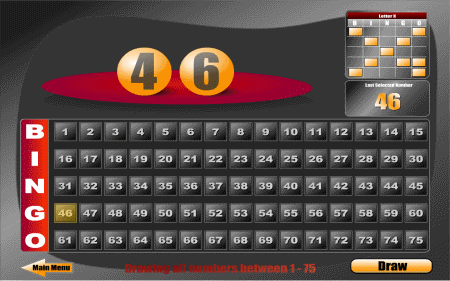 The Play Game Display screen for US Bingo games The Play Game Display screen for US Bingo games
[Contents] Setting ezDraw Display Options
You can change the way ezDraw looks on your computer screen and when games are relayed to a TV screen or projected on to a big screen. To change your Display Options, click on the Display Options button on the ezDrawWelcome/Main Menu screen. The display will change to the Program Configuration screen. Background Picture
To set a Background Picture, click on the Browse button in the Program Configuration screen to locate and select a picture file (.gif, .jpg, .png etc) from your computer's hard drive or from another drive (CD, DVD,floppy disk, Flash drive etc). Once selected and applied, the Background Picture will appear immediately behind the other graphic images in the Program Configuration screen. Background Picture Visibility
You can alter the Visibility of your Background Picture using the Visibility slider control in the Program Configuration screen. This adjusts the alpha value or transparency of yourBackground Picture to any value from 0 to 100 per cent. Background Colour
To change the Background Colour in ezDraw, click on the Background Colour button (rainbow icon) in the Program Configuration screen. This will open a Colour Selection Palette dialog box. To select a colour, click on the colour in the Colour Range Selector bar (middle panel) then fine tune your selection in the Colour Detail Selector panel (left panel). Alternatively, you can enter a hexidecimal RGB (Red, Green,Blue) code value for the colour you want in the RGB text box. Similarly, you can specify an HSB (Hue, Saturation, Brightness) value in the HSB text box. You can view the currently selected colour in the Colour Preview panel (right panel). HSB and RGB values for the currently selected colour are displayed in the column of Numerical Value displayboxes. Click on the Select button to apply your selected Background Colour and exit the Colour Selection Palette dialog box. Click on the Cancel button to exit the Colour Selection Palette dialog box without applying the selected Background Colour . Number Draw Style
Select a Number Draw Style from the Number Draw Style dropdown list box. The selected Number Draw Style governs the appearance and behaviour of the animation displayed when ezDraw picks a random numberfor a draw. Current Number Draw Style options are Classic Draw and Spinning Balls . Background Theme
Select a Background Theme from the Background Theme dropdown list box. The select Background Theme is layered on to ezDraw's graphic display and so can be seen in conjunction with the selectedBackground Picture and Background Colour. 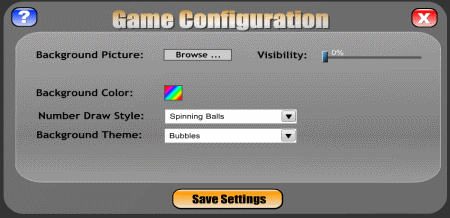 The Diplay Options screen for Raffle Games & UK Bingo/Housie The Diplay Options screen for Raffle Games & UK Bingo/Housie
[Contents]
ezDraw can print tickets for raffle or bingo/housie games that are set up in the Game Manager. Games must be set to Active mode in order for tickets to be printed. To print tickets for a game in the GameManager, select a game from the Active Games list in the Setup and Maintain Games window and then click on the orange Select Game and go to Game Start bar/button. The Maintain Games window willclose to display the Main Menu screen. In the Main Menu screen, click on the Print Tickets button to open the Select a Ticket Type screen. You can also print tickets for raffle games in Quick Start. Once you've defined your Number Range in the Game Start screen, click on the Print Tickets button to open the Select a TicketType screen. Select one of the following options from the the Select a Ticket Type screen:  The Select Ticket Type screen The Select Ticket Type screenClicking on one of the above Ticket Type options will open the Print Tickets screen. The Print Tickets screen is a display of details of the game for which you are going to print tickets. The following information is displayed in the Print Tickets screen: Starting Number (as defined in the Game Manager Game Options dialog box and the Raffle Game screen) Number of Tickets to Print (equal to the Starting Number minus the Ending Number of the defined Number Range plus 1) Ticket Heading (type a Ticket Heading for your game into the text box) Ticket Message (type aTicket Message for your game into the text box)
A Ticket Preview image of the ticket as it will appear when printed is displayed at the bottom of the The Print Tickets screen. To print tickets for your game, click on the Print Tickets button in the Print Tickets screen. This opens a standard Windows Print dialog box. The Game Manager provides access to ezDraw's more advanced features. You can create games and keep records of ticket holder details and contact information, prizes and sponsors. You can also programme AutomaticDraws, access histories of played games, import data from or export data to a text file, print data, validate winning tickets and edit Automatic E-Mail Notification settings and templates. For simple real-time raffles and bingo/housie games you may not need to use the Game Manager . Instead, when you open ezDraw, just click on the Quick Start button on the ezDraw Welcome/Main Menu screen. Opening the Game Manager
When you open ezDraw click on the Game Setup option button on the ezDraw Welcome/Main Menu screen. The Setup and Maintain Games window will open. 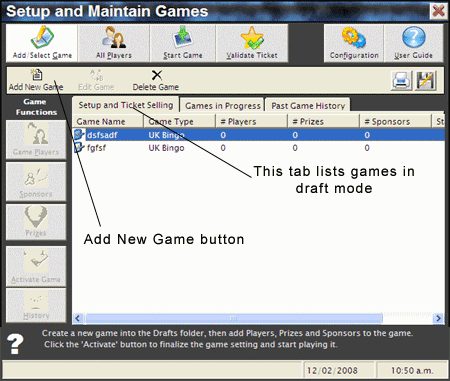 The Setup and Maintain Games window in the Game Manager The Setup and Maintain Games window in the Game Manager Setting up a Game in the Game Manager :
Creating a New GameClick the Add New Game button at the top left of the Setup and Maintain Games window to create a new game in Draft mode (setup and Ticket Selling tab). This opens an Add New Game dialog boxcontaining 3 separate tab views for configuring your new game: Game Details, Automatic Draw and Description. By default the Add New Game dialog box opens displaying the Game Details optionstab. 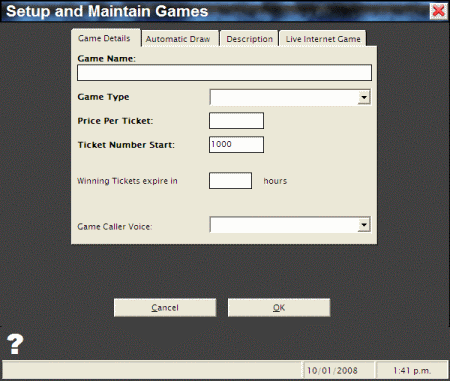 The Add New Game dialog box in the Game Manager - Game Details tab selected The Add New Game dialog box in the Game Manager - Game Details tab selected Note that your new game remains in Draft mode until you set it to Active mode by clicking on the Activate button in the Setup and Maintain Games window. Games canonly be played once they are Activated (ie set to Active mode). Active Games are removed from the Draft Games list in the Setup and Maintain Gameswindow and put into the Active Games list. You can still edit details and change settings for games and add players, prizes or sponsors to games once they are made Active . To start entering details for your new game, click on the Game Details tab in the Add New Game dialog box. First, enter a name for your new game in the Game Name text box (eg New Brighton Bowls Xmas Raffle). Then select the type of game you want from the Game Type drop down list . Available game type options are as follows: - Raffle Game - Select this option to play a raffle/lottery game.
Standard UK Bingo/Housie - Select this option to play bingo (UK) or housie (NZ, Aust).
Standard US Bingo - Select this option to play bingo (US).
Enter the price you want to charge per ticket into the Price Per Ticket text box. Pricing is non-currency specific so just enter a numeric value with a decimal point to specify lower denominations (eg if you use dollars and cents and you wantto charge 50 cents per ticket, enter 0.50, .50, 0.5 or .5). Enter an integer numeric value/whole number (eg 1, 6, 1008) into the Ticket Number Start text box to specify the lowest numbered ticket to be sold (normally the Ticket Number Start value will be 1). The Ticket NumberStart value also sets the lower end of the range of numbers that ezDraw can pick at random during a draw. Enter an integer numeric value/whole number (eg 1, 6, 1008) into the Number of Tickets text box to specify the number of tickets you want to make available for your raffle or bingo game. If you don't wish to specify an upper limit, justleave the text box blank. Note: The Ticket Number Start and Number of Tickets settings define the range of numbers from which ezDraw may pick at random (eg if Ticket Number Start is set to 10 and Number of Tickets isset to 99, for any draws in that game ezNimberDraw can only pick any of the 90 numbers in the range 10-99. Numbers less than 10 or greater than 99 will never be picked. Enter an integer numeric value/whole number (eg 1, 6, 1008) in the Winning Tickets expire in ... hours text box if you want to specify a time-framewithin which winners must claim their prizes. The value entered represents the number of hours until expiry after the game or draw. If you want to specify a number of days, multiply that number by 24. For a number of weeks, multiply that number by 168. For a number of months,multiply that number by 672. If you don't wish to specify an expiry time, just leave the text box blank. Game Caller VoiceSelect a voice from the Game Caller Voice dropdown list box if you wish to add a recorded voice number caller to your game. The Automatic Draw feature enables you to set a time for a raffle game to start and set the numbe of draws to be made during the game, the time between draws and the amount of time you want the programme to display drawnnumbers. This feature is particularly suited to online raffle games. To set Automatic Draw features for your new game, click on the Automatic Draw tab in the Add New Game dialog box. Please note that the Automatic Draw feature does not utilise Window scheduling. This means the that your Automatic Draw game will only start at the specified date/time if 1) the ezDraw programme is running,2) the game is selected in the Active Games list in the Setup and Maintain Games window and 3) the ezDraw Game Start screen is displayed and active. 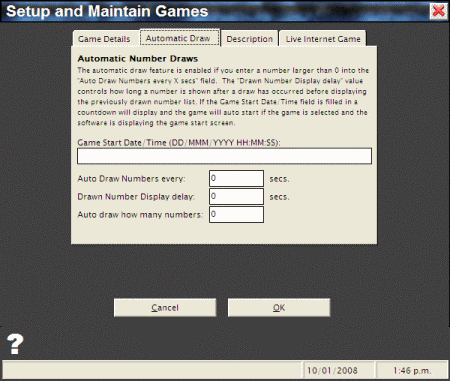 The Add New Game dialog box in the Game Manager - The Add New Game dialog box in the Game Manager -
Automatic Draw tab selectedEnter a date and time in the specified format (DD/MMM/YYYY/HH/MM/SS) in the Game Start Date/Time text box. Note that letters are required to specify the month whereas numerals are used for the day, year, hours, minutes and seconds (eg12/JAN/2007/17/30/00 = 5.30 pm on the 12th of January 2007).Once you've set a date/time value for your Automatic Draw, a countdown will begin. If your Automated Draw raffle game is to have more than one draw (see Auto Draw how many numbers below), you can specify how long to wait between draws by entering an integer numeric value/whole number (eg 1, 6, 1008) inthe Auto Draw Numbers every ... Secs text box. The value entered represents the number of seconds to delay between draws. This feature is primarily intended for when all the draws in an Automated Draw game occur in a single session within a time frame of minutes rather than hours or days. However, there is technically no limit on how long the game canwait between draws. You can specify the amount of time in seconds you want to display the winning number of a draw in an Automated Draw game before going on to the next draw (if applicable). Type the required delay time into the Drawn Number Display delay ... secs text box. This feature is primarily intended for when all the draws in an Automated Draw game occur in a single session within a time frame of minutes rather than hours or days. However, there is technically no limit on how long the game candisplay the winning number after a draw. If your Automated Draw raffle game has more than one draw, the time between draws will be equal to the sum of value entered into Auto Draw Numbers every... Secs and the value entered into Drawn Number Display delay ... secs . Enter an integer numeric value/whole number (eg 1, 6, 1008) in the Auto Draw how many numbers text box to specify the number of draws you want inyour Automated Draw raffle game. If you want to run an unlimited number of draws, just leave the text box blank. You can enter a text description containing any relevant information you may wish to attach to your new game. This information is for your reference only and does not appear anywhere on the ezDraw animated number draw display screen. To add a text description, click on the Description tab in the Add New Game dialog box and type your description into the Game Description multi-line text box. This information is for your referenceonly and does not appear anywhere on the ezDraw animated Play Game display screen. 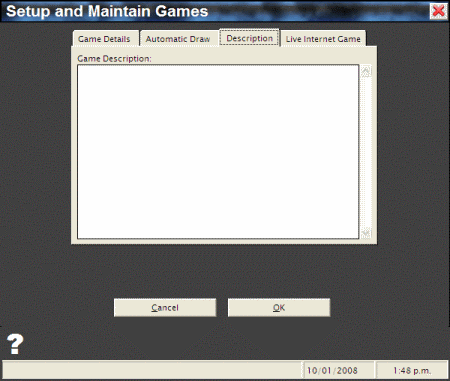 The Add New Game dialog box in the Game Manager - The Add New Game dialog box in the Game Manager -
Game Description tab selectedThe Live Internet Game feature allows you to publish game results online or to show draws live online, or both. To set up a Live Internet Game when creating a new game, go to the Live Internet Game tab in theSetup and Maintain Games dialog box and check the option(s) you require. To add the feature to an existing game in draft mode, click the Edit Game button and follow the above instructions. The Live Internet Game featurepublishes game draws and results on web pages specified in the Internet Configuration options (Cick on the Configuration button and select the Internet tab). Once you've set up your new game in Draft mode, you can start pre-selling tickets and keeping a record of names and contact details of ticket holders (if required). To add players to your new game select the game in the Draft Games list on the click on the Players button in the Setup and Maintain Games window. The Add Players window will open. Once entered,player details for Draft Games are displayed as a list in the Add Players window. 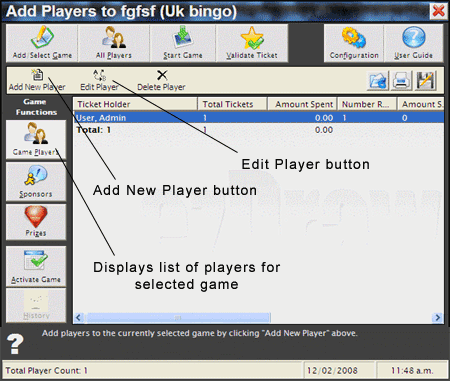 The Add Players window in the Game Manager The Add Players window in the Game ManagerTo add a player (ticket purchaser) to a selected Draft Game, click on the Add New Player button in the Add Players window. This will open Add Player to Game dialog box will opencontaining 3 separate tab views for configuring your new game: Player Details, Contact Information and Notes. By default the Add Player to Game dialog box opens displaying the PlayerDetailsoptions tab. 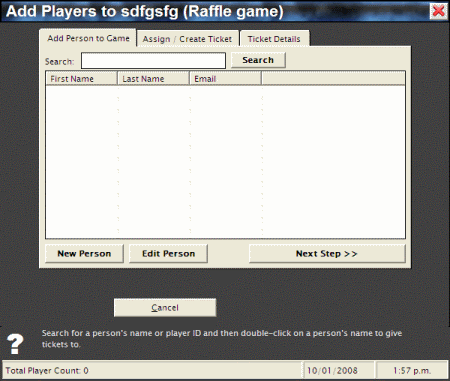 The Add Player to Game dialog box in the Game The Add Player to Game dialog box in the Game
Manager - Player Details tab selectedEntering Player Details
Player Name
Enter a first and last name for your new player in the Player First Name and Player Last Name text boxes respectively. Player details are saved when you click on the Add Player to Game button to exit theAdd Player to Game dialog box. To add another player, click on the Add New Player button in the Add Players window. Number of Tickets Bought/Total Value of Purchase
The Number of Tickets Bought option button (default) should be selected if you want to enter the number of tickets pre-purchased by your new player. Select the Total Value of Purchase option button if your new playerrequests tickets totalling a certain value (eg $20 worth). Starting/Ending Ticket Number
The Game Manager automatically records the ticket number(s) of tickets pre-purchased by a new player. These numbers are displayed as a range by the Starting TicketNumber and Ending Ticket Number indicator boxes. [Contents] Entering Player Contact Information
Click on the Contact Information tab of the Add Player to Game dialog box if you need to notify the player of their ticket numbers, that their tickets are ready for collection or that they are the holder of a winningticket. Email Address
Enter the new player's e-mail address in the Email Address text box. Phone Number
Enter the new player's phone number in the Phone Number text box. Automatic E-Mail Notification
Tick the check box on the Contact Information tab of the Add Player to Game dialog box if you want to send an automated e-mail to the new player with notification of the ticket numbers of pre-purchased tickets or to notify theplayer that he or she is the holder of a winning ticket. An Internet connection is required to make use of this feature. Automatic E-mail Notification only applies to raffle games and not to bingo or housie. [Contents] Adding Notes to a New Player Record
You can enter text notes containing any relevant information you may wish to attach to your new player record. This information is displayed on the Play Game display screen if the player is the holder of the winningticket for a draw. So if, for example, the day of the draw falls on the player's birthday, you can use the Notes feature to wish the player a happy birthday and congratulate them on their win and project the message onto a TV or big screen. To add player Notes, click on the Notes tab in the Add Player to Game dialog box and type your notes into the Notes multi-line text box. [Contents] Assign / Create Ticket
When you add a new player to a selected game, you can assign or create tickets to be allocated to that player. Once the player's name and details have been entered, make sure the player is selected and click on the Next Step button in the AddPlayer dialog box. Alternatively, you can either double-click on the player or select the player then click on the Assign / Create Ticket tab. Tickets may also be allocated to players already added to the game by selecting the player and clicking the Edit Player button.If a ticket has already been allocated to a player, the ticket number will automaticallydisplay in the text box in the Assign / Create Ticket tab. [Contents] Ticket Details
Once you've assigned tickets for your selected player, click on the Next Step button or selct the Ticket Details tab in the Add Player dialog box. Here, you will see details for all tickets created for the selectedplayer: the ticket serial and ticket number list, the total number of tickets and the total value of the ticket sale. If necessary, you can look up a ticket serial number for the selected player by entering a starting number into the text box and clicking the Lookup Ticket Serial button. If the ticket details for the selected player are correct, you can assign the numbers and notify the player by clicking the Finished button. To cancel the assignement of tickets for the selected player, click on the Void CurrentSale button. [Contents] Exporting and Printing Player Lists
Player lists for games can be printed or exported to a text file. Click on the Print List or Export List buttons respectively on the Add Players window to perform these functions. [Contents] Importing Player Lists from Text Files
You can import player lists into a Draft Game from a text file. The text file should be in the following TAB delimited format (without headings): FirstName,LastName,StartNumber,EndNumber,Email,CellPhone,Note,SendEmailNotification(Yes,No),SendSMSNotification(Yes,No) Use a spreadsheet worksheet and save as a Comma/TAB Separated Text File and change the settings to use the TAB character as a field separator and no quotes for text values. To import the data from the text file into your new game, click on the Import Text File button in the Add Players window. 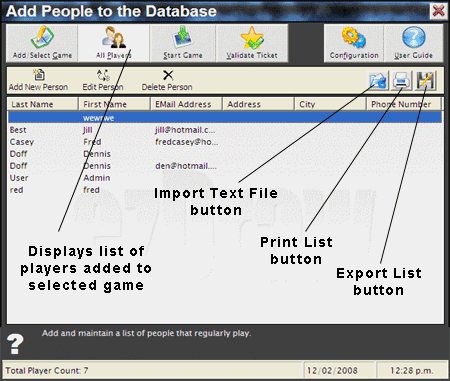 Import Text File & Export List buttons in the Add Players window Import Text File & Export List buttons in the Add Players window
[Contents] Adding a Sponsor
You can add one or more sponsors to your new game if you want to keep a record of persons or organisation sponsoring your raffle or bingo/housie game (typically, sponsors contribute prizes). To add a sponsor to a selected Draft Game, click on the Sponsors button in the Setup and Maintain Games window. This will open the Add Sponsors Window. Then, each time you want to add anew sponsor click on the Add New Sponsor button to open the Add New Sponsor to Game dialog box. By default the Add New Sponsor to Game dialog box opens with the Sponsor Details tabl selected. Once entered, sponsordetails are displayed as a list in the Add Sponsors window.  The Add New Sponsor to Game dialog box in the Game The Add New Sponsor to Game dialog box in the Game
Manager - Spponsor Details tab selected
Sponsor Name
Type the name of your new sponsor in the Sponsor Name text box in the Add New Sponsor to Game dialog box. Sponsor Picture
You can select a picture (eg company logo) to represent your sponsor. Sponsor pictures are displayed as icons on the grey bar at the bottom of the ezDraw Play Game screen. You can display pictures for a number of sponsors during any givengame. Use the Browse button in the Add New Sponsor to Game dialog box to locate and select a picture file (.gif, .jpg, .png etc) from your computer's hard drive or from another drive (CD, DVD, floppy disk, Flash driveetc). Sponsor Website Address
Type your new sponsor's website address (URL) into the Website Address text box in the Add New Sponsor to Game dialog box. Sponsor Description
If you wish,you can type a text description or notes for your new sponsor into the Description multi-line text box in the Sponsor Description tab in the Add New Sponsor to Game dialog box. This information is for your reference only and does not appear anywhere on the ezDraw animated PlayGame display screen. 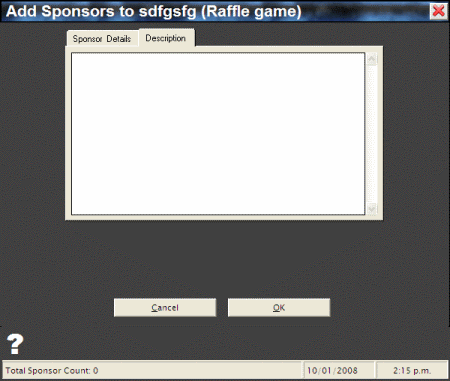 The Add New Sponsor to Game dialog box in the Game The Add New Sponsor to Game dialog box in the Game
Manager - Sponsor Description tab selected
[Contents] Exporting and Printing Sponsor Lists
Sponsor lists for games can be printed or exported to a text file. Click on the Print List or Export List buttons respectively on the Add Sponsors window to perform these functions. [Contents] Adding a Prize
You can add numerous prizes to your new game (one for every draw) and numerous prizes of the same type. Prizes are drawn in the order entered and same type prizes are grouped together (ie drawn consecutively). To add a prize to a selected Draft Game, click on the Prizes button in the Setup and Maintain Games window. This will open the Add Prizes Window. Then, each time you want to add anew sponsor click on the Add New Prize button to open the Add New Prize to Game dialog box. By default the Add New Prize to Game dialog box opens with the Prize Details tabl selected. Onceentered, prize details are displayed as a list in the Add Prizes window. 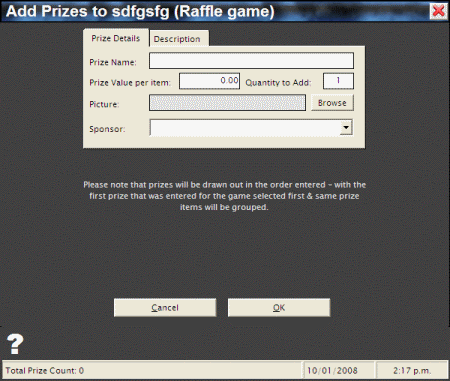 The Add New Prize to Game dialog box in the Game The Add New Prize to Game dialog box in the Game
Manager - Prize Details tab selected
Prize Name
Type a name for your new prize into the Prize Name text box in the Add New Prize to Game dialog box. Prize Value Per Item
Type the monetary value of your new prize into the Prize Value Per Item text box in the Add New Prize to Game dialog box. Prize Quantity
Enter the number of prizes of this type to be won in this game into the Quantity (Qty) text box. Prize Picture
You can select a picture of your new prize. Prize pictures are displayed as icons on the grey bar at the bottom of the ezDraw game display screen. You can display pictures for a number of prizes during any given game. Use the Browse button in the Add New Prize to Game dialog box to locate and select a picture file (.gif, .jpg, .png etc) from your computer's hard drive or from another drive (CD, DVD, floppy disk,Flash drive etc). Prize Sponsor
If you've added sponsors to your new game (see Adding a Sponsor above), you can associate a sponsor with a prize when you add a new prize to your game. Select thesponsor you want to acknowledge in association with the prize by selecting the sponsor's name from the dropdown list in the Add New Prize to Game dialog box. Prize Description
If you wish, you can type a text description of your new prize into the Description multi-line text box in the Prize Description tab in the Add New Prize to Game dialog box. This information is for your reference only and does not appear anywhere on the ezDraw animated Play Game display screen.  The Add New Prize to Game dialog box in the Game The Add New Prize to Game dialog box in the Game
Manager - Prize Description tab selected
[Contents] Exporting and Printing Prize Lists
Prize lists for games can be printed or exported to a text file. Cick on the Print List or Export List buttons respectively on the Add Prizeswindow to perform thesefunctions. [Contents] Setting a Game to Active
Once you've finished setting up and entering data into your Draft Game, you need to Activate it to make it into an Active Game. Games can only be played in ezDraw once they've been made active. Active Gamescan still be edited just like Draft Games . To Activate a Draft Game, make sure the game is selected in the Draft Games list in the Setup and Maintain Games window. Then click on the Activatebutton. The selected game will be removed from the Draft Games list and will appear as the selected game in the Active Games list in the Setup and Maintain Games window. When you Activate a game, the text on the orange bar/button at the bottom of the Setup and Maintain Games window will change to "Select Game and go to Game Start". Click the orange bar/button to exit theGame Manager and open the Game Start screen. From the Game Start screen you can select any of the following options: Play Game, Print Tickets, Start Screen,Display Options, Quick Start, User Guide or Exit Program. (There is also a Minimise button to the top right of the Game Start screen.) [Contents] Games in Progress tab
When you start playing an Active Game that has been set up in the Game Manager, you can view the game's progress in the Games in Progress tab in the Setupand Maintain Games window. To view a game's progress, select the game from the list in the Games Name tab. The results (ticket number, date drawn and ticket holder's name) for every draw in the game so far are thendisplayed as a list in the Games in Progress tab in the Setup and Maintain Games window. [Contents] Played Game History Tab
When you finish playing an Active Game that has been set up in the Game Manager, you can view the game's history in the Played Game History tab in the Setup andMaintain Games window. To view a game's history, select the game from the list in the Games Name tab. The results (ticket number, date drawn and ticket holder's name) for every draw in the game are then displayed as a list in thePlayed Game History tab in the Setup and Maintain Games window. [Contents] Validating a Winning Ticket
When a player claims a prize from a game set up in the Game Manager, use the Validate feature to confirm that the winning ticket is genuine. To Validate a ticket, click on theValidate button in the Setup and Maintain Games window. This will open the Validate Ticket dialog box. 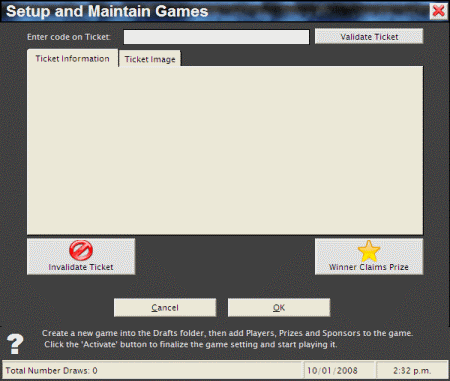 The Validate Ticket dialog box in the Game The Validate Ticket dialog box in the Game
Manager - Ticket Information tab selected
Enter Code on Ticket
Type the ticket's code number into the Enter Code on Ticket text box in the Validate Ticket dialog box. Then click on the Validate Ticket button. The ticket details will appear for inspection in theTicket Information tab of the Validate Ticket dialog box. To check the ticket's appearance, click on the Ticket Image tab of the Validate Ticket dialog box. Winner Claims Prize
If the ticket proves to be valid, click on the Winner Claims Prize button in the Validate Ticket dialog box. Invalidate Ticket
If the ticket proves to be invalid, click on the Invalidate Ticket button in the Validate Ticket dialog box. Ticket Image
Click on the Ticket Image tab in the Validate Ticket dialog box to view a digitally rendered image of the ticket being validated. [Contents] Configuring E-Mail Settings
The Configuration feature enables you to enter settings for Automatic E-mail Notification of ticket numbers and any winning tickets held by a player. Note that Automatic E-mail Notification settingsare global, which means the settings apply to all games set up in the Game Manager that are set to send Automatic E-mail Notification. Automatic E-mail Notification only applies to raffle games and not to bingo or housie. To configure your Automatic E-mail Notification settings, click on the Configuration button in the Setup and Maintain Games window. This will open theProgram Setup dialog box, which contains 2 separate tab views for configuring your Automatic E-mail Notification settings: the E-Mail Setup tab and the E-Mail Templates tab.  The Program Setup dialog box in the Game The Program Setup dialog box in the Game
Manager - E-Mail Setup tab selected
E-Mail Setup
When you click on the Configuration button in the Setup and Maintain Games window, the Program Setup dialog box displaying the E-Mail Setup tab by default. Whenyou've finished entering or changing your settings click on the OK button to save your settings and exit the Program Setup dialog box.
Outgoing SMTP Mail Server
Enter the address of you outgoing server into the Outgoing SMTP Mail Server text box (eg smtp.xtra.co.nz). If you don't know the outgoing server address, you can probably retrieve it from your e-mail client software (eg OutlookExpress, Thunderbird) by clicking on Tools in the Main Menu and selecting the Account Settings option. If you're unsure, contact your ISP (Internet Service Provider). Sender Name
Enter a name for your Automatic E-mail Notification messages into the Sender Name text box (eg ezDraw Email Notification). This will appear as the Subject of all Automatic E-mailNotification messages sent so that recipients can identify their origin. Sender E-Mail Address
Enter your e-mail address into the Sender E-Mail Address text box. [Contents] Editing E-Mail Templates
The ezDraw Game Manager contains the following editable E-Mail Templates: Default Ticket Heading Default Ticket Message Raffle Game Entry Notification Email Raffle Game Entry Notification SMS Raffle Game Entry Notification SkypeChat Raffle Game Winner Notification Email Raffle Game Winner Notification SMS Raffle Game Winner Notification SkypeChat
To edit your e-mail templates, click on the Configuration button in the Setup and Maintain Games window and then click on the E-Mail Templates tab inthe Program Setup dialog box. Automatic E-mail Notification only applies to raffle games and not to bingo or housie. Note that the e-mail templates provided contain Keywords (eg #FIRSTNAME, #NUMTICKETS). When you send an e-mail message, the keywords are replaced by data stored in your game's player list that will be different for everyplayer. So if the player's first name is entered as Freda in the Game Manger, the e-mail message the player receives will read "Dear Freda" rather than "Dear #FIRSTNAME". When you edit an e-mail template, be sure not to delete or change the formatting of anykeywords you want to maintain. You can move or copy keywords to other parts of the message if you wish.  The Program Setup dialog box in the Game The Program Setup dialog box in the Game
Manager - E-Mail Templates tab selected
Number Confirmation E-Mail Template for Raffle Tickets
This e-mail template contains the Automatic E-mail Notification message text confirming the raffle ticket numbers purchased by the player/recipient. You can replace, insert, add or delete text just as you would whencomposing any e-mail message. Click on the OK button to save your changes and exit the Program Setup dialog box. Winner E-Mail Text Template for Raffle Tickets
This e-mail template contains the Automatic E-mail Notification message text notifying the player/recipient that he or she is the holder of a winning ticket. You can replace, insert, add or delete text just as you wouldwhen composing any e-mail message. Click on the OK button to save your changes and exit the Program Setup dialog box. [Contents] Voice Calling
Use the Voice Calling feature to use pre-recorded number calling voices or to create your own voice recordings. Add atmoshphere to your bingo games and have fun by making a voice recording of traditional UK slang bingo calls("Two little ducks - 22", "Doctor's orders - number 9" etc). Voice calling is also a great feature for language teachers who want to create customised "word bingo" listening comprehension games for their students. From the Game Manager click on the Configuration button in the Setup & Maintain Games window. Then click on the VoiceCalling tab. 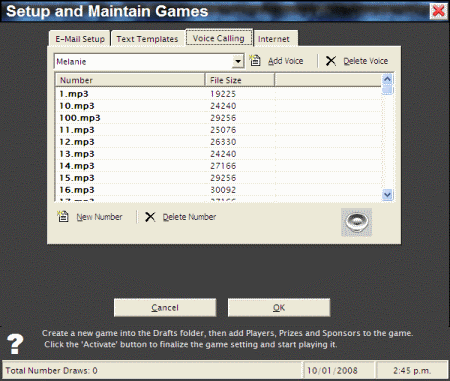 The Program Setup dialog box in the Game The Program Setup dialog box in the Game
Manager - Voice Calling tab selected
Select Voice
Use the Select Voice dropdown list box to select a pre-recoded Voice. A Voice is a collection of mp3 recordings of numbers, one for each number in your Number Range. Add Voice
Click on the Add Voice button to create a new Voice option. Delete Voice
Click on the Delete Voice button to delete the selected Voice. New Number
Click on the New Number button to record a new Number into the selected Voice. Delete Number
Click on the Delete Number button to delete the selected Number from the selected Voice. [Contents] Internet Tab
Select the Internet tab to set the web page URL to which you want to publish live draws or winning ticket numbers for a Live Internet Game. Editing Game Details
To Edit Game Details select a game from the Draft Games list or Active Games list and click on the Edit Game Details button in the Setup and Maintain Games window. To addplayers, sponsors or prizes to a Draft or Active game, select the game and click on the relevant button in the Setup and Maintain Games window just as if you were setting up a New Game. [Contents] 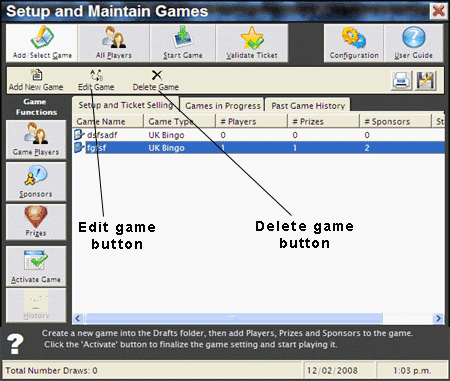 The Setup and Maintain Games window in the Game Manager The Setup and Maintain Games window in the Game Manager
Deleting Games
To Edit Game Details select a game from the Draft Games list, Active Games list or Played Game History list and click on the Edit Game Details button in theSetup and Maintain Games window. Be sure to Export any data you want to keep a record of before deleting a game. [Contents] |